

Disclosure: As an Amazon Associate, Arthritis Wares earns from qualifying purchases at no extra cost to you. We are not paid or sponsored by any manufacturer. Affiliate links help support our work.
Technology can make everyday tasks easier when arthritis makes gripping, tapping, typing, clicking, or holding devices uncomfortable.
The most useful solution isn’t always a specialized arthritis gadget. Sometimes a built-in accessibility feature, voice-to-text, a different computer mouse, or a simple phone stand can eliminate much of the hand movement that causes difficulty.
This guide focuses on personal and office technology for arthritis—including smartphones, medication-management devices, computer accessories, and accessibility tools.
Looking specifically for smart-home automation such as smart lights, locks, thermostats, and robot vacuums? See our companion guide to Smart Home Gadgets for Arthritis.
Quick Answer: Best Assistive Technology for Arthritis
| Technology | Problem It Can Help Solve | Best For |
|---|---|---|
| Voice-to-text | Reduces typing and touchscreen input | Hand and finger discomfort |
| Smartphone accessibility features | Makes text and controls easier to use | Smartphone users |
| Phone stand or holder | Reduces the need to grip a phone | Anyone who finds holding a phone uncomfortable |
| Large-grip stylus | Makes touchscreen tapping easier | Reduced finger dexterity |
| Electronic pill dispenser | Organizes scheduled doses and provides reminders | People managing multiple medications |
| Large-button remote | Reduces small, difficult-to-press buttons | TV users |
| Ergonomic mouse | Changes hand and wrist positioning | Computer users |
| Wrist rest | Provides a place to rest the hands during desk work | Keyboard users |
| Electric standing desk | Allows easier height adjustment | Adjustable workspaces |
The goal is not to buy more technology. It is to reduce the amount of gripping, pinching, tapping, typing, clicking, reaching, or holding required to complete everyday tasks.
How Arthritis Can Make Technology Harder to Use
Modern phones, computers, remotes, and other devices often require small, repetitive movements.
Those movements can become frustrating when joints are stiff or uncomfortable.
Common problems include:
- Pressing small buttons
- Swiping repeatedly on a touchscreen
- Holding a smartphone for long periods
- Typing for extended periods
- Clicking a mouse repeatedly
- Gripping a mouse tightly
- Using a trackpad
- Pinching to zoom
- Handling small connectors and cables
- Holding a phone during long conversations
- Reaching across a desk
- Staying in one position while working
The solution is often to change the task or the equipment rather than simply doing the same movement repeatedly.
1. Use Voice-to-Text to Reduce Typing
Voice-to-text can be one of the simplest ways to reduce repetitive finger movement.
Instead of typing an entire message or document, you can speak and allow your device to convert your words into text.
Depending on your device, dictation can be useful for:
- Text messages
- Emails
- Notes
- Search queries
- Documents
- Lists
- Social media posts
Most modern smartphones already include dictation, and computers also offer speech-recognition features.
Why voice-to-text can help
Typing requires repeated finger movements. Dictation can reduce those movements, particularly when you need to enter a longer passage.
You don’t have to choose between voice and typing. Many people can use dictation for the bulk of a message and then use the keyboard or touchscreen for corrections.
Tip: Always review dictated text before sending important messages or documents because speech recognition can make mistakes.
2. Try Voice Control and Accessibility Features
Voice-to-text primarily replaces typing. Voice control can go further by reducing the need to interact physically with the device.
Depending on your phone or computer, accessibility features may allow you to:
- Open applications
- Search
- Send messages
- Make calls
- Navigate screens
- Select items
- Adjust settings
- Control certain functions by voice
Your device may also offer settings for:
- Larger text
- Magnification
- Increased contrast
- Larger display elements
- Touch accommodations
- Pointer adjustments
- Keyboard shortcuts
- Longer touch-and-hold timing
- Reduced motion
Before buying specialized equipment, check your device’s accessibility settings.
You may already have a solution to the problem you’re trying to solve.
3. Make Your Smartphone Easier to Use
There isn’t one smartphone that is best for everyone with arthritis.
Instead, consider how the phone feels and functions for you.
Look at:
- Overall weight
- Screen size
- Button placement
- Ease of unlocking
- Screen readability
- Voice-control options
- Case design
- Charging method
- How securely you can hold it
A larger screen can make buttons and text easier to see, but a large phone can also be harder to hold.
A smaller phone may be easier to carry but require more precise tapping.
Don’t overlook the phone case
A case can make a surprisingly large difference.
A textured case, finger loop, grip, or other holding accessory may make the phone easier to secure without gripping it as tightly.
The best combination is the one that allows you to use your phone without unnecessarily stressing your hands.
4. Use a Phone Stand or Holder
If holding a smartphone is uncomfortable, don’t hold it.
A phone stand or adjustable holder can keep the device positioned in front of you while you:
- Read
- Watch videos
- Follow instructions
- Make video calls
- Use voice-to-text
- Read recipes
- Participate in online meetings
This is a good example of a simple adaptation that can sometimes be more useful than buying a specialized arthritis device.
5. Consider a Large-Grip Stylus
A stylus gives you another way to interact with a touchscreen.
It can be useful for:
- Tapping small controls
- Scrolling
- Selecting links
- Writing
- Drawing
- Signing documents
If gripping small objects is difficult, look for a larger-barrel stylus rather than a narrow pen-shaped model.
A stylus isn’t automatically better for everyone. If gripping the stylus itself is uncomfortable, increasing the size of the touchscreen controls or using voice control may be a better solution.
6. Electronic Medication Dispensers
Medication management is another area where technology can reduce the number of tasks you have to remember or perform manually.
Live Fine 28-Day Electronic Medication Organizer
Top Pick: Live Fine 28-Day Electronic Medication Organizer
This electronic dispenser is designed to organize scheduled doses and provide alerts. Its large capacity may be useful for people who take multiple medications or supplements on a regular schedule.
Why it may be useful:
- Organizes doses by schedule
- Provides sound and light alerts
- Large 28-day capacity
- LCD display
- Locking design
Important: An electronic dispenser is an organizational and reminder tool. It does not replace instructions from your healthcare professional, pharmacist, or caregiver. Check that the dispenser’s schedule and compartments are appropriate for your medications before relying on it.

7. Make TV Controls Easier With a Large-Button Remote
Small buttons can make ordinary remote controls frustrating when finger dexterity is limited.
Flipper Big Button Universal TV Remote
Top Pick: Flipper Big Button Universal TV Remote
The Flipper remote uses larger buttons and a simplified layout for basic television and compatible cable or set-top-box controls.
Why it may be useful:
- Large buttons
- Simplified layout
- Favorite-channel controls
- Fewer small buttons to navigate
One important limitation: the current product description indicates that it does not work with streaming devices, so check compatibility with your particular TV and setup before purchasing.

8. Choose an Ergonomic Computer Mouse
If you spend a lot of time at a computer, your mouse deserves as much attention as your keyboard.
A conventional mouse requires repeated clicking and a sustained grip. An ergonomic design can change the position of your hand and wrist or provide a shape that reduces the need to grip tightly.
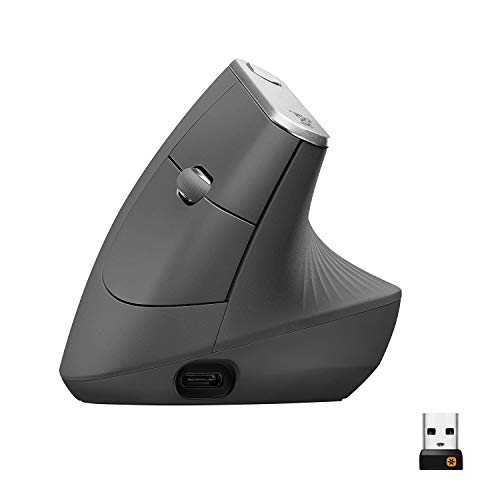
Logitech MX Vertical Mouse
Top Pick: Logitech MX Vertical Wireless Mouse
The MX Vertical uses a vertical design that positions the hand differently from a conventional mouse.
Features include:
- Vertical ergonomic design
- Wireless operation
- Rechargeable battery
- Multi-device support
The vertical shape isn’t automatically more comfortable for everyone. It can take some time to get used to, and hand size and individual comfort matter.
Another option: a trackball
If moving a conventional mouse across a desk is uncomfortable, a trackball may be worth considering.
A trackball allows you to move the pointer using a stationary device rather than repeatedly sliding the mouse across the desk.
This changes the movement required rather than simply changing the shape of the mouse.
9. Consider a Keyboard Wrist Rest
A wrist rest can provide a comfortable place to rest your hands during computer work.
Kensington ErgoSoft Wrist Rest
Top Pick: Kensington ErgoSoft Wrist Rest
The Kensington ErgoSoft uses a padded surface designed to provide support at the keyboard.
Features include:
- Cushioned support
- Ergonomic design
- Easy-to-clean surface
- Designed for standard keyboards
A wrist rest should not force your wrists into an awkward position. Ideally, your hands and wrists should remain comfortable while typing rather than resting heavily on the support throughout every keystroke.

10. Consider an Electric Standing Desk
If you work at a desk for long periods, being able to change your working position can be useful.
An electric standing desk allows you to raise or lower the work surface without manually turning a crank.
Vari Electric Standing Desk
Top Pick: Vari Electric Standing Desk, 72″ × 30″
The Vari desk uses electric height adjustment and memory presets, making it possible to change desk height with the push of a button.
Features include:
- Electric height adjustment
- Memory presets
- Large work surface
- Dual-motor design
- Sit-to-stand flexibility
A standing desk isn’t necessarily better than sitting. Its main advantage is that it gives you more flexibility to change positions and adjust the workstation to your needs.

11. Improve Your Entire Computer Setup
Buying an ergonomic mouse or wrist rest is only part of creating a more comfortable workstation.
Consider the position of:
- Monitor
- Keyboard
- Mouse
- Chair
- Desk
- Documents
- Frequently used accessories
Keep the keyboard and mouse close enough that you don’t have to reach forward repeatedly.
If you use a laptop, an external keyboard and mouse can give you more flexibility because the screen and input devices can be positioned separately.
An adjustable monitor stand or laptop stand can also make it easier to position the screen at a comfortable height.
12. Reduce Mouse Use With Keyboard Shortcuts
A new mouse isn’t always the answer.
Keyboard shortcuts can reduce repeated pointing and clicking.
Start with the commands you use most often, such as:
- Copy
- Paste
- Undo
- Save
- Search
- Switch applications
- Close windows
You don’t need to memorize dozens of shortcuts. Learning a few frequently used commands can reduce unnecessary mouse movement.
13. Make Computer Controls Easier to Use
Computer operating systems offer accessibility settings that can make everyday controls easier to interact with.
Depending on your computer, you may be able to adjust:
- Pointer size
- Pointer speed
- Double-click speed
- Text size
- Display magnification
- Contrast
- Keyboard behavior
- Voice control
For example, increasing pointer size can make it easier to locate the cursor, while adjusting double-click speed may make repeated clicking easier.
These changes cost nothing and are worth trying before purchasing new hardware.
Best Assistive Technology by Problem
Instead of starting with a product, start with the movement that is causing difficulty.
| If You Have Trouble With… | Try… |
|---|---|
| Typing | Voice-to-text or an ergonomic keyboard |
| Holding a smartphone | Phone stand or holder |
| Small touchscreen controls | Larger display settings or a large-grip stylus |
| Repeated clicking | Ergonomic mouse or keyboard shortcuts |
| Moving a conventional mouse | Trackball |
| Small TV remote buttons | Large-button universal remote |
| Managing medication schedules | Electronic medication dispenser |
| Wrist comfort at a keyboard | Ergonomic wrist rest and better positioning |
| Adjusting desk height | Electric standing desk |
| Reaching computer equipment | Reposition your workstation |
How to Choose Assistive Technology for Arthritis
You don’t need to replace all your technology at once.
Start with the task that causes the most difficulty.
1. Identify the movement
Is the problem caused by gripping, pressing, tapping, typing, clicking, reaching, or holding?
2. Check your existing settings
Your phone or computer may already have an accessibility feature that solves the problem.
3. Try a simple adaptation
A phone stand, different mouse position, or voice-to-text feature may be enough.
4. Consider specialized equipment
If the problem continues, look at an ergonomic or assistive device designed to change the movement required.
5. Consider how often you’ll use it
A product that solves a problem you encounter several times a day may be worth the investment.
A complicated device that creates new steps may not be.
Smart Technology vs. Assistive Technology
These terms overlap, but they aren’t identical.
Smart technology generally refers to connected devices and technology that can be controlled digitally or automatically.
Assistive technology is broader. It includes products, equipment, and features that help make a task easier or more accessible.
For example:
- Voice-to-text is assistive technology.
- An ergonomic mouse is assistive technology.
- A smartphone’s magnification feature is an accessibility tool.
- A large-button remote is assistive technology.
- A smart speaker can function as assistive technology when used for hands-free control.
For this reason, you don’t need the latest “smart” gadget to make your technology easier to use.
Common Buying Mistakes
Buying a product because it says “ergonomic”
Ergonomic doesn’t automatically mean comfortable for every person.
Consider the actual movement required and whether the product changes it in a useful way.
Assuming more features are better
Additional features can also mean additional buttons, menus, settings, and maintenance.
Simple may be better.
Ignoring compatibility
Check whether a remote works with your television, whether a mouse works with your operating system, and whether other accessories are compatible with your existing equipment.
Buying before checking accessibility settings
You may already have voice control, magnification, dictation, or other useful features built into your device.
Choosing based only on appearance
A product can look arthritis-friendly in a photograph but still be difficult to grip, press, or operate.
Focus on how it changes the task.
Do You Need Special Technology to Stay Independent?
Not necessarily.
Technology is one tool among many ways to make everyday tasks easier.
A simple change in the way you arrange a workstation may be more useful than an expensive gadget.
Likewise, using voice-to-text may be more effective than buying a specialized keyboard if typing itself is the main problem.
The best solution is the one that removes a specific obstacle without creating another one.
A Practical Way to Upgrade Your Technology
Try improving one problem at a time.
Step 1: Choose one task that regularly causes difficulty.
Step 2: Identify the movement that makes it difficult.
Step 3: Check your device’s accessibility settings.
Step 4: Try a simple change in how you perform the task.
Step 5: If necessary, consider an assistive or ergonomic product.
Step 6: Keep the solution if it genuinely makes the task easier.
This approach can help prevent unnecessary purchases and keeps your technology setup manageable.
FAQ: Assistive Technology for Arthritis
What technology is most helpful for people with arthritis?
There is no single best option. Voice-to-text, accessibility features, ergonomic mice, phone holders, large-button remotes, and other assistive devices can help depending on which movements are difficult.
Can voice-to-text help with arthritis in the hands?
Yes. Dictation can reduce the amount of typing required for messages, emails, notes, and documents.
Is an ergonomic mouse good for arthritis?
An ergonomic mouse may be useful if the shape or position of a conventional mouse causes discomfort. A vertical mouse or trackball changes how the hand interacts with the computer, but comfort varies from person to person.
Can a smartphone be made easier to use with arthritis?
Often, yes. Increasing text size, changing accessibility settings, using voice control, adding a comfortable case, or placing the phone on a stand can all reduce the physical effort required.
Is a large-button remote useful for arthritis?
It can be helpful when small remote-control buttons are difficult to see or press. Check compatibility carefully because not every large-button remote works with streaming devices or every television setup.
Do I need specialized assistive technology?
Not necessarily. Many smartphones and computers already include accessibility features such as dictation, magnification, voice control, and adjustable touch or pointer settings.
Related Reading
Smart Home Gadgets for Arthritis
Our companion guide focuses specifically on smart-home automation, including smart lighting, plugs, thermostats, locks, and other home devices.
Arthritis Hacks That Make Everyday Life Easier
Practical ways to adapt everyday tasks by reducing gripping, pinching, twisting, bending, reaching, and repetitive hand movements.
Arthritis Supplies & Tools: Complete Guide to Daily Living Aids
A broader guide to practical tools and assistive products for everyday activities.
Final Thoughts
The most useful technology for arthritis isn’t necessarily the most advanced.
Voice-to-text can reduce repetitive typing. A phone stand can eliminate the need to hold a smartphone. A large-button remote can replace a frustrating collection of tiny controls. An ergonomic mouse can change how your hand interacts with a computer.
Start with the task that gives you the most trouble and look for a way to reduce the gripping, pressing, tapping, typing, clicking, or holding required.
The goal isn’t to make your technology more complicated. It’s to make everyday technology easier to use.
Practical tools. No hype
Medical Disclaimer: This article is for informational purposes only and does not constitute medical advice. Always consult your doctor, rheumatologist, or occupational therapist before making changes to how you manage your arthritis.
